Joining an Intercom
Joining an intercom will often require the intercom users to configure a number of settings before actually using the permissable channels
Joining a Password Protected Intercom
When joining an intercom that is protected by a password a dialog box will pop up asking the user to input the password that the creator of the intercom set. This password is securely stored in the database and is not verfied locally on the device. If the password is incorrect then the user will not be allowed to join the intercom. A correct password will then load the join settings.
General Settings
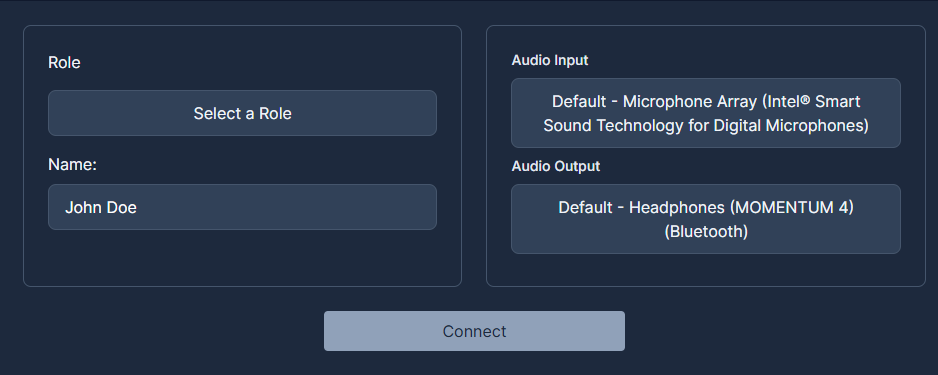
The most commonly altered settings are presented in the ‘General’ tab allowing for quicker and easier intercom joining.
Role & Name
A user can select the role in the dropdown ‘Role’ box. If the user is the creator of the intercom then the name will be the default name set in the users account settings. If the user is a guest to the intercom then the name will default to the role that they select. This remains editable at all times to a name of the users preference.
Audio Inputs & Outputs
Here is where users can configure their audio inputs and outputs for the system. Currently this is only supported in major browsers, and especially setting audio output device can be often unavailable on mobile due to a limitation on how mobile operating systems mix audio tracks.
Companion Settings
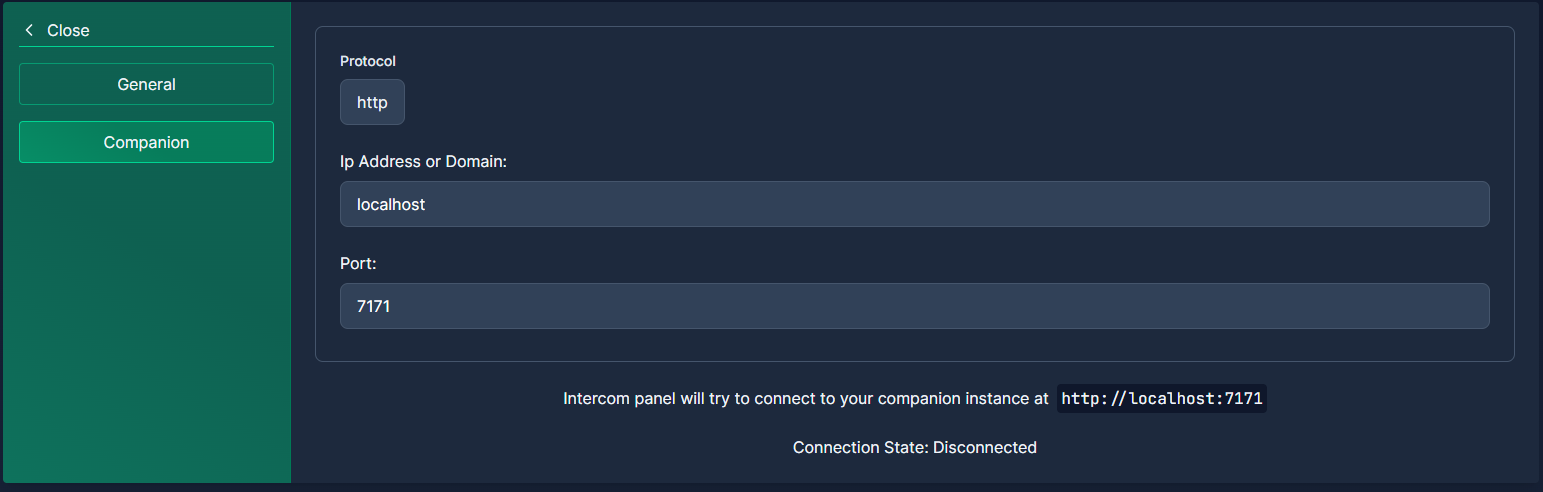 For the licensed workspaces that include Companion support, details for connecting to companion can be found in this tab. Web Comms connects to your companion instance via the browser tab and you may be asked to allow Web Comms to interact with applications on your computer. This must be allowed for the Companion connection to work.
 Should the Web Comms Companion Module be hosted on a different port, or url entirely you can alter these settings.
PGM Feed Settings
 If you are the creator and owner of the intercom and it has PGM feeds licensed and created then you'll see stream url and key details in this tab. For more information on PGM feeds, see the PGM Feed docs.